
Execute a manual flow
Manual execution is a human-driven test. Flowstride advances the connected canvas and records your judgment; it does not operate the application for you.
Start from a reviewed template
Open the saved design, confirm its version and environment, prepare the data, and switch to Execution Mode. The canvas structure and metadata are locked for live execution.
Entering Execution Mode initializes the run's step states. Returning to Design and entering Execution again starts that initialization again; do not use mode switching as a way to pause and resume an unsaved run. Submit the current record before changing the design.
Record outcomes
Perform the action in the application, inspect its outcome, then focus the workspace canvas. Shortcuts do not apply while editing an input, textarea or rich-text field.
| State | Meaning | Canvas shortcut |
|---|---|---|
| Pending | Not yet evaluated | Initial state |
| Current | Step awaiting the tester's judgment | Set by the engine |
| Passed | Observed outcome matches the expectation | Enter |
| Failed | Observed outcome contradicts the expectation | Delete or Backspace |
| Blocked | A prerequisite or environment prevents evaluation | Tab |
| Skipped | Deliberately omitted; explain why | Escape |
Each recorded outcome advances along the outgoing connection. Unconnected nodes do not become Passed simply because the path ends. Check the full report for Pending or Current steps.
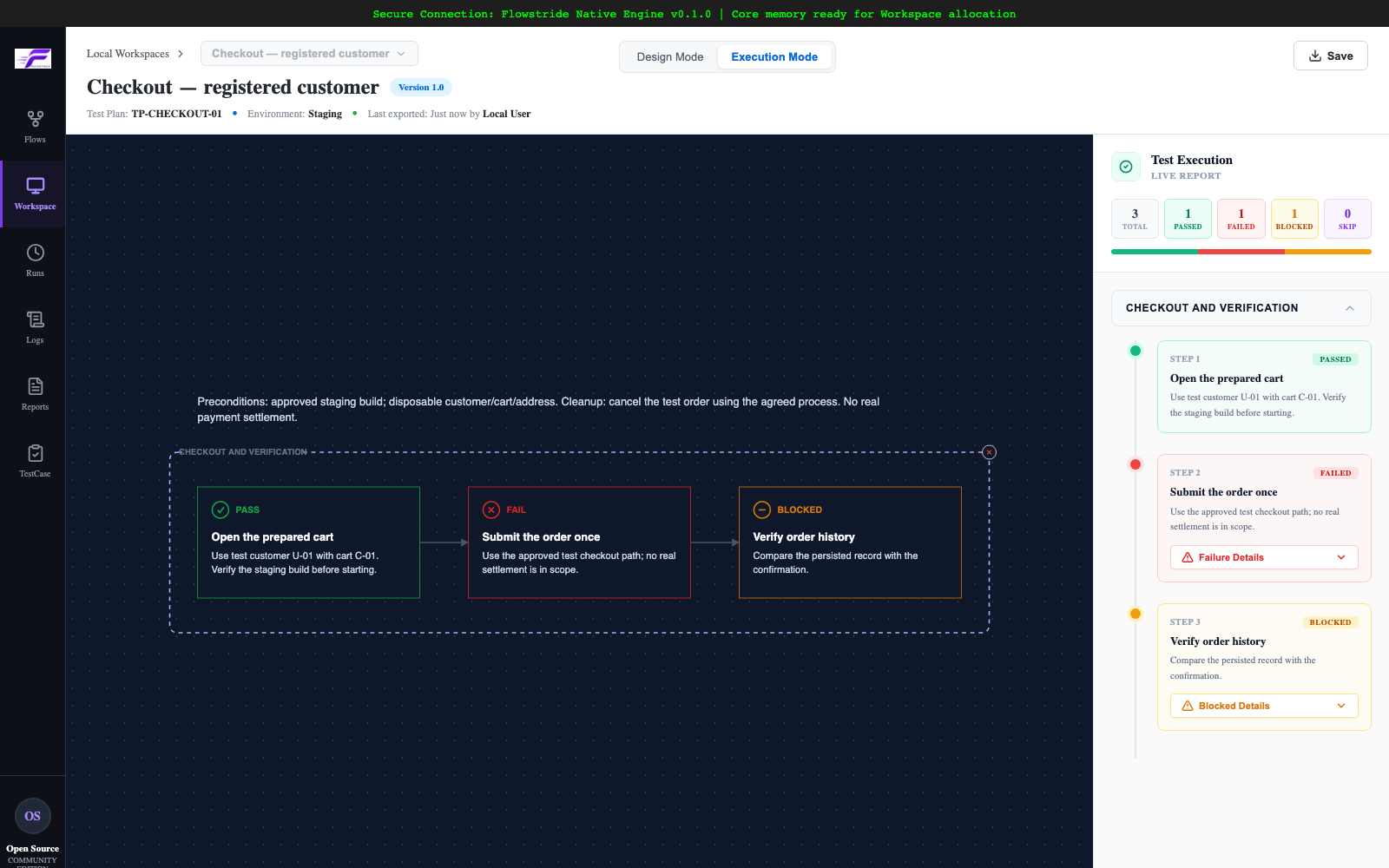
Illustrative outcomes recorded against the example design. The execution report retains each step separately.
Handle failure without losing the record
- Mark the failing step Failed.
- Open its defect report/evidence controls in the execution panel.
- Record expected versus actual behavior, reproduction data and impact.
- Attach concise evidence and save the defect form with Save Data.
- Continue only where the remaining actions are still meaningful; mark dependent cases Blocked when they cannot be assessed.
- Click Save in FS / Submit Run in Cloud mode and wait for the local save confirmation.
Saving a defect form updates the current canvas record; Saving the execution record persists the run snapshot. A local save confirmation and a Cloud synchronization confirmation are different signals.
Understand the overall run status
| Overall status | How it is derived |
|---|---|
| NO STEPS | The execution report has no steps |
| FAIL | At least one step is Failed |
| PASS | Every step is Passed |
| INCOMPLETE | Steps remain Current, Pending, Blocked or Skipped, with no failure |
Aggregate “pending” counts include everything that is neither Passed nor Failed. For release decisions, inspect the individual Blocked/Skipped states rather than interpreting that aggregate as only untouched steps.
Retest
Preserve the failed run. Fix the application or test setup, start a new execution from the intended template, and submit a new run referencing the original defect. A passing retest does not erase the failure history.